 Home
Home HTML/CSS
 Link 1
 Sublinks >>>
 jQuery/JS
 PHP
PHP MySQL
MySQL XSLT
XSLT
How To Display Recent Tweets In Blogger With Twitter Widgets?
Are you a running a blog or running any type of website?
That might you have Twitter account too.
Twitter is one of the most engaging social media on this planet. It’s a great
way to keep monitor with recent trend, interact with your reader, and help
other users. But most important it gives visitors a even during periods when
you’re not publishing new blog posts. Think about that if you add recent tweets
in your blog to create an interactive environment where it makes sense about
your website, readers can follow the author, reply to the tweet directly from
your website. So what you are waiting for, let's get started.
In this article, we will show you how to display recent tweets in Blogger / Blogspot
using official recent tweets twitter widget. It is going to so simple that you
might do it in one hand just follow these below steps.

Step-1
First thing is go to Create A New Embedded User Timeline Page. Then login with your Twitter account, if you are already logged in just go to Step-2.Step-2
Now By default, the width of the widget is automatically
adjusted so you don’t need to worry about that. There are a few options to set
height, select either light or dark theme, Auto-expand photos, Exclude replies
etc. Once ready with the widget appearance, and then click on “create widget”
button.

Step-3
Copy the code which appear after you clicked on “create
widget” button and paste these code in HTML/JavaScript widget in blogger blog.


Step-4
To add this go to Blogger Dashboard >> Layout, then
click on Add a Gadget from the sidebar. Select HTML/JavaScript widget and paste
the code inside content box, hit Save button.
Above you can see the live preview of recent tweets widget.
If you do it correctly, you can see the live view of tweets in your blogger
sidebar.
If you want to add it in any other area of your site such as a Blogger
post or page, then simply copy the code and paste the widget code in your post
editor by clicking on HTML tab see the image below!

Read More Here
Collection In Twitter
First go to the Parameter Reference Page, find tweet-limit in the page. It looks like this! tweet-limit >> Display an expanded timeline of between 1 and 20 Tweets. Look at the code before tweet-limit parameter added.
Whats More ?
Twitter widgets not only allows you to display the latest
Tweets from a single Twitter account, but also it allow you to show multiple
accounts tweets, your liked tweets, lists, and a hashtag or search keyword.
Configuration is so simple just by selecting your favorite tweets, lists,
hashtag, etc.
For Search, you need to add the hashtag that you want to
display.
For lists, you have to select the list you want to include.
Read More Here
Collection In Twitter
Parameter Reference
Parameter simply known as options, by using this you can
customize your embedded timeline. Just add with data-* attributes to your
twitter widget code. For example I want only 5 recent tweets to show in my
embedded timeline to do so.
First go to the Parameter Reference Page, find tweet-limit in the page. It looks like this! tweet-limit >> Display an expanded timeline of between 1 and 20 Tweets. Look at the code before tweet-limit parameter added.
<a class="twitter-timeline" href="https://twitter.com/marketer1032" data-widget-id="701304144158597120">Tweets by @marketer1032</a>
<script>!function(d,s,id){var js,fjs=d.getElementsByTagName(s)[0],p=/^http:/.test(d.location)?'http':'https';if(!d.getElementById(id)){js=d.createElement(s);js.id=id;js.src=p+"://platform.twitter.com/widgets.js";fjs.parentNode.insertBefore(js,fjs);}}(document,"script","twitter-wjs");</script>
Just add parameter data-tweet-limit="5" to the above code.
<a class="twitter-timeline" href="https://twitter.com/marketer1032" data-widget-id="701304144158597120" data-tweet-limit="5">Tweets by @marketer1032</a>
<script>!function(d,s,id){var js,fjs=d.getElementsByTagName(s)[0],p=/^http:/.test(d.location)?'http':'https';if(!d.getElementById(id)){js=d.createElement(s);js.id=id;js.src=p+"://platform.twitter.com/widgets.js";fjs.parentNode.insertBefore(js,fjs);}}(document,"script","twitter-wjs");</script>
See the live preview how it look like after adding data-tweet-limit="5".
Enjoy.
I hope you found this article very helpful. Please share it to your friends and subscribe to our blog to get latest updates from us.
Display Social Widgets For Blogger (Facebook, Google+ & Twitter)
Displaying social widgets in a blog helps visitors to know
that your blog has a profile on Facebook, Google+ and Twitter and so they get
the latest updates straight from these social networks. This helps to build
traffic to your blog.
In this post we will see how to get and display social
widgets for Blogger. Facebook like box, Google+ badge and Twitter tweets for
your Blogger blog.
Displaying Facebook like box, Google+ badge and Twitter
tweets in Blogger is really easy. Just follow the steps.

Must Check Out Below Article!
How To Display Facebook Like Box In Blogger?
Facebook like box
is a great Widget for bloggers, which give you the opportunity to promote your
personal blog or your website on social network.
Today, Social networks
have grown so much on the Internet, even Google consider Twitter and Facebook a
major Factor for Search Engine Optimization. So, adding like box in
your blog sidebar is an excellent practice to convert your visitors into loyal
readers, by simply follow you in one click. We show you how to create
Facebook like box for blogger blog easily.
Now follow these simple steps
First, go to Blogger
and log in to your account. After you complete login, Click the blog title in
which you want to add the Facebook Like Box and enter the main dashboard.

Now, Click on layout, then go to your sidebar widget.


Now, Click on layout, then go to your sidebar widget.
Now, you need
to Add a HTML/JavaScript Gadget to your blogger, which we will use it
to copy iframe script code to display our Facebook like box.
Last thing to
do, is to copy this code and add it on HTML/JavaScript Gadget.
<iframe
src="//www.facebook.com/plugins/likebox.php?
href=https://www.facebook.com/TripleClicks1032&width=290&height=250&
amp;colorscheme=light&show_faces=true&border_color&stream=false&header=false&" style="border: none; height: 250px;
overflow: hidden; width: 290px;" >
</iframe>
Replace my
Facebook page ID “TripleClicks1032” in the URL with your own ID of the
page.
Go to your
Facebook Page you will find the ID in the URL, Your ID should be as sequence of
numbers or as username as you can see in below ScreenShot.
You can change the width and height of Facebook
like box based on your Blogger blog template and click save the gadget.
Get Your Own FaceBook Like Box Code
The above code fits perfectly for all the blogs if you want
to add new features like streams, color, width and height.
You can use this link Facebook Like Box and get your own code.

You can use this link Facebook Like Box and get your own code.
Now click on "Get Code" and copy it, later paste this code in HTML/JavaScript gadget.
Hit "Save" and refresh your blog or website. You will now see a stylish Facebook Like Box embed to your site.
Enjoy.
Hit "Save" and refresh your blog or website. You will now see a stylish Facebook Like Box embed to your site.
Enjoy.
How To Add Official Google+ Badge / Widget To Blogger Blogs
Or Websites?
Within one year, Google Plus has overtaken other social
networking platforms by a fare large margin. If we see the statistics of
the recent year 2012, then the facts are pretty much clear that Google+ is way
ahead than others.
Therefore, connecting your blog with Google Plus is an ideal
way of magnetizing more new readers, as well as building a strong relationship
with your followers. For Example, when a person shared his post on Google+
then, it will send messages to all the followers about that latest post which
will increase the viewership. For that reason Today, Google officially released
yet another Google plus Perk: The follower gadget (only for BlogSpot enabled
websites). Today in this article, we will learn more about the Google+ Follower
Gadget and will also learn how to integrate it in our Blogger site.
Add Official Google Plus Badge / Widget To Blogger Site
Sign into Google+, and go to Google+ Badges
Page. Now, in Google+ user section, you can choose your profile, page or
community. In other options, you may select as of your need.

Note:- If you want to add badge for your community, then go to your community page,
and copy the link, and paste that URL to Google+ user section.
For example, my community page URL is

Make sure, if you are using badge for your community pages,
you need selected the correct URL of your Community Page.
https://plus.google.com/communities/101384761918164914602
If you have pasted the correct URL, you will see the preview in the right side.
Remember! The code you will get for your Google+ Badge is divided in to TWO PARTS. To understand these two parts, see the below screenshot.Code Placements
First Part Of Code:- Place this part of the code where you want your Google+ Badge / Widget to be rendered.
Second Part Of Code:- Place this part of code between <head> and </head> tags (Meaning! after <head> while before </head>).
Second Part Of Code:- Place this part of code between <head> and </head> tags (Meaning! after <head> while before </head>).
Code Configuration
First of all Sign In to your Blogger Account. Go to Blogger Dashboard, then Template, then click Edit HTML as you can see in below image.

Now click anywhere inside HTML Editor. Find the code (Using Ctrl + F keys) <head> or </head> as in below screenshots.
Now paste carefully the Second Part Of Code just below <head> tag or just above </head> tag. See the screenshot for both illustrations.
Paste Second Part Of Code below <head> tag.

Paste Second Part Of Code above </head> tag.

Now click on Save Template.
Now copy the First Part Of Code and paste it anywhere you want to display your Google+ Badge / Widget.
Now click anywhere inside HTML Editor. Find the code (Using Ctrl + F keys) <head> or </head> as in below screenshots.
 |
| Search For <head> |
 |
| Search For </head> |
Now paste carefully the Second Part Of Code just below <head> tag or just above </head> tag. See the screenshot for both illustrations.
Paste Second Part Of Code below <head> tag.
Paste Second Part Of Code above </head> tag.
Now click on Save Template.
Now copy the First Part Of Code and paste it anywhere you want to display your Google+ Badge / Widget.
For Example
In Sidebar:- Paste First Part of Code into
your sidebar widgets by going to Blogger Dashboard >> Layout >> Add
A Gadget (choose from sidebars) >> HTML/JavaScript (Choose under pop
up window) and paste your code and click on Save.
In Content Above / Below:- Sign in to Your Blogger
Dashboard >> Template >> Edit HTML and find the code
(Using Ctrl+F) <data:post.body/> and paste First Part Of Code
just before <data:post.body/> to display your Google+ Badge / Widget above the content
area.
If you want to show it below the content area, paste First Part Of Code below <data:post.body/> and finally click on Save.
Note:- If you are using customized template on your Blogger blog, you would see <data:post.body/> code two times in your template, so try for each and look at your blog to find out which is suitable for your blog. Mostly it works in second time code.
You're done. Enjoy.
Also Read Below Guideline
I hope you like this article, please share it to your friends and subscribe to our blog to get latest updates from us.
Note:- If you are using customized template on your Blogger blog, you would see <data:post.body/> code two times in your template, so try for each and look at your blog to find out which is suitable for your blog. Mostly it works in second time code.
You're done. Enjoy.
Also Read Below Guideline
I hope you like this article, please share it to your friends and subscribe to our blog to get latest updates from us.
How To Customize YouTube Embed Player?
This article explains how to customize a YouTube embed player by
using YouTube defined parameters. Nowadays most of the web developers using
embed <iframe> tag for displaying videos, this improves your
web project playback experience. You can stop displaying related videos using
the rel parameter or removing the YouTube logo on player by using modestbranding
parameter, hope this will enrich your web project experience.

autoplay
Description:- This parameter specifies whether the initial video will
automatically start to play when the player loads.
Supported values are 0 or 1.
The default value is 0.
Supported values are 0 or 1.
The default value is 0.
<iframe src="https://www.youtube.com/embed/HIsKF943vTk?autoplay=1" frameborder="0" allowfullscreen width="570" height="315" >
</iframe>
rel
Description:- This parameter indicates whether the player should show related videos when playback of the initial video ends.Supported values are 0 and 1.
The default value is 1.
<iframe src="https://www.youtube.com/embed/HIsKF943vTk?rel=0" frameborder="0" allowfullscreen width="570" height="315">
</iframe>
showinfo
Description:- Supported values are 0 and 1.
Setting the parameter's value to 0 causes the
player to not display information like the video title and uploader before the
video starts playing.
If the player is loading a playlist, and you explicitly set
the parameter value to 1, then, upon loading, the player will also display
thumbnail images for the videos in the playlist.
Note that this functionality
is only supported for the AS3 player.
<iframe src="https://www.youtube.com/embed/HIsKF943vTk?showinfo=0" frameborder="0" allowfullscreen width="570" height="315">
</iframe>
controls
Description:- This parameter indicates whether the video player controls
are displayed. For IFrame embeds that load a Flash player, it also defines when
the controls display in the player as well as when the player will load.
Supported values are!
controls=0 – Player controls do not display in the
player. For IFrame embeds, the Flash player loads immediately.
controls=1 (default) – Player controls display in the
player. For IFrame embeds, the controls display immediately and the Flash
player also loads immediately.
controls=2 – Player controls display in the player. For
IFrame embeds, the controls display and the Flash player loads after the user
initiates the video playback.
Note:- The parameter values 1 and 2 are
intended to provide an identical user experience, but controls=2 provides
a performance improvement over controls=1 for IFrame embeds.
Currently, the two values still produce some visual differences in the player,
such as the video title's font size. However, when the difference between the
two values becomes completely transparent to the user, the default parameter
value may change from 1 to 2.
<iframe src="https://www.youtube.com/embed/HIsKF943vTk?controls=0" frameborder="0" allowfullscreen width="570" height="315">
</iframe>
modestbranding
Description:- This parameter lets you use a YouTube player that does not
show a YouTube logo. Set the parameter value to 1 to prevent the
YouTube logo from displaying in the control bar.
Supported values are 0 and 1. While 0 is default value.
Note that a small YouTube text
label will still display in the upper-right corner of a paused video when the
user's mouse pointer hovers over the player.
<iframe src="https://www.youtube.com/embed/HIsKF943vTk?modestbranding=1" frameborder="0" allowfullscreen width="570" height="315">
</iframe>
color
Description:- This parameter specifies the color that will be used in the
player's video progress bar to highlight the amount of the video that the
viewer has already seen.
Valid parameter values are red and white,
and, by default, the player uses the color red in the video progress bar.
Note:- Setting the color parameter to white will disable the modestbranding option.
<iframe src="https://www.youtube.com/embed/HIsKF943vTk?color=white" frameborder="0" allowfullscreen width="570" height="315">
</iframe>
cc_load_policy
Description:- Setting the parameter's value to 1 causes closed
captions to be shown by default, even if the user has turned captions off. The
default behavior is based on user preference and the default value is 0.
<iframe src="https://www.youtube.com/embed/HIsKF943vTk?cc_load_policy=1" frameborder="0" allowfullscreen width="570" height="315">
</iframe>
disablekb
Description:- Setting the parameter's value to 1 causes the
player to respond to keyboard controls. The default value is 0, which
means that keyboard controls are disabled.
Supported keyboard controls are!
Spacebar:- Play / Pause
Arrow Left:- Jump back 10% in the current video
Arrow Right:- Jump ahead 10% in the current video
Arrow Up:- Volume up
Arrow Down:- Volume Down
<iframe src="https://www.youtube.com/embed/HIsKF943vTk?disablekb=1" frameborder="0" allowfullscreen width="570" height="315">
</iframe>
iv_load_policy
Description:- Setting the parameter's value to 1 causes video
annotations to be shown by default, whereas setting to 3 causes video
annotations to not be shown by default. The default value is 1.
<iframe src="https://www.youtube.com/embed/HIsKF943vTk?iv_load_policy=3" frameborder="0" allowfullscreen width="570" height="315">
</iframe>
end
Description:- This parameter specifies the time, measured in seconds from
the start of the video, when the player should stop playing the video. The
parameter value is a positive integer.
Note that the time is measured from the beginning of the
video and not from either the value of the start player parameter or
the startSeconds parameter, which is used in YouTube Player API functions
for loading or queueing a video.
<iframe src="https://www.youtube.com/embed/HIsKF943vTk?end=10" frameborder="0" allowfullscreen width="570" height="315">
</iframe>
fs
Description:- Setting this parameter to 0 prevents the
fullscreen button from displaying in the player. The default value is 1,
which causes the fullscreen button to display.
<iframe src="https://www.youtube.com/embed/HIsKF943vTk?fs=0" frameborder="0" allowfullscreen width="570" height="315">
</iframe>
loop
Description:- In the case of a single video player, a setting of 1causes
the player to play the initial video again and again. In the case of a playlist
player (or custom player), the player plays the entire playlist and then starts
again at the first video.
Supported values are 0 and 1, and the default
value is 0.
<iframe src="https://www.youtube.com/embed/HIsKF943vTk?loop=1" frameborder="0" allowfullscreen width="570" height="315">
</iframe>
Note:- This parameter has limited support in the AS3 player and in IFrame embeds, which could load either the AS3 or HTML5 player. Currently, the loop parameter only works in the AS3 player when used in conjunction with the playlist parameter. To loop a single video, set the loop parameter value to 1 and set the playlist parameter value to the same video ID already specified in the Player API URL!
https://www.youtube.com/v/VIDEO_ID?
version=3
&loop=1
&playlist=VIDEO_ID
version=3
&loop=1
&playlist=VIDEO_ID
start
Description:- This parameter causes the player to begin playing the video
at the given number of seconds from the start of the video. The parameter value
is a positive integer. Note that similar to the seekTo function, the
player will look for the closest keyframe to the time you specify. This means
that sometimes the play head may seek to just before the requested time,
usually no more than around two seconds.
<iframe src="https://www.youtube.com/embed/HIsKF943vTk?start=10" frameborder="0" allowfullscreen width="570" height="315">
</iframe>
Recommended Parameters
You can use multiple parameters in following way.
<iframe src="https://www.youtube.com/embed/HIsKF943vTk?rel=1&modestbranding=1&showinfo=0" frameborder="0" allowfullscreen width="570" height="315">
</iframe>
Some Other Parameters Are Listed Below
autohide
Description:- This parameter indicates whether the video controls will
automatically hide after a video begins playing. This parameter has been
deprecated for HTML5 players, which display or hide the video progress bar and
player controls automatically (autohide=1).
Supported values are!
2 (default) – If the player has a 16:9 or 4:3 aspect
ratio, the video progress bar and player controls display or hide
automatically. Otherwise, those controls are visible throughout the video.
1 – Regardless of the player's dimensions, the video
progress bar and player controls display or hide automatically.
0 – Regardless of the player's dimensions, the video
progress bar and player controls are visible throughout the video.
The interface language is used for tooltips in the player and also affects the default caption track.
enablejsapi
Description:- Setting the parameter's value to 1 enables the
player to be controlled via IFrame or JavaScript Player API calls.
The default value is 0, which means that the player cannot be controlled
using those APIs.
h1
Descriptions:- Sets the player's interface language. The parameter value is
an ISO 639-1 two-letter language code or a fully specified locale.
For example, fr and fr-ca are both valid values. Other
language input codes, such as IETF language tags (BCP 47) might also be handled
properly.
The interface language is used for tooltips in the player and also affects the default caption track.
Note that YouTube might select a different caption track
language for a particular user based on the user's individual language
preferences and the availability of caption tracks.
list
Description:- The list parameter, in conjunction with the listType parameter,
identifies the content that will load in the player.
1. If the listType parameter value issearch, then the list parameter
value specifies the search query.
2. If the listType parameter value isuser_uploads,
then the list parameter value identifies the YouTube channel whose
uploaded videos will be loaded.
3. If the listType parameter value is playlist, then
the list parameter value specifies a YouTube playlist ID. In the
parameter value, you need to prepend the playlist ID with the letters PL as
shown in the example below.
https://www.youtube.com/embed?
listType=playlist
&list=PLC77007E23FF423C6
listType=playlist
&list=PLC77007E23FF423C6
Note:- If you specify values for the list and listType parameters,
the IFrame embed URL does not need to specify a video ID.
listType
Description:- The listType parameter, in conjunction with the list parameter,
identifies the content that will load in the player. Valid parameter values areplaylist, search,
and user_uploads.
If you specify values for the list and listType parameters, the
IFrame embed URL does not need to specify a video ID.
origin
Description:- This parameter provides an extra security measure for the
IFrame API and is only supported for IFrame embeds.
If you are using the IFrame
API, which means you are setting the enablejsapi parameter value to 1,
you should always specify your domain as the origin parameter value.
playerapiid
Description:- This setting is used in conjunction with the JavaScript API.
The value can be any alphanumeric string.
playlist
Description:- This parameter specifies a comma-separated list of video IDs
to play. If you specify a value, the first video that plays will be the VIDEO_ID specified
in the URL path, and the videos specified in the playlist parameter will
play thereafter.
playsinline
Description:- This parameter controls whether videos play inline or
fullscreen in an HTML5 player on iOS.
Valid values are!
0 > This value causes fullscreen playback. This is currently
the default value, though the default is subject to change.
1 > This value causes inline playback for UIWebViews created
with the allowsInlineMediaPlayback property set to TRUE.
theme
Description:- This parameter indicates whether the embedded player will
display player controls (like a play button or volume control) within a dark or
light control bar. This parameter has been deprecated for HTML5 players, which
always use the dark theme.
Valid parameter values are dark and light, and, by default, the
player will display player controls using the dark theme.
Conclusion
These are the every possible parameters you can use with YouTube Player. Be sure to make possible changes for the required parameters as I have mentioned above in descriptions of each parameter. Be honest and wise and share this article to your friends and comment below.
How To Remove YouTube Logo And Title Links From Embedded Video Player?
YouTube is the world’s largest video sharing site and with every
second one hour of video is uploaded. As a blogger you will be sharing and
posting more articles. Other than text, embedding a YouTube video tutorial will
be greatly useful for your site visitors. With simple embed code YouTube makes
us easy to embed a video in to our site.
For branding you will decide to
remove YouTube logo from embedded video, but there is another reason which you
probably don’t know. So we have decided to make a post on how to remove YouTube
logo and title links from embedded video.

Reason To Remove YouTube Logo And Title Links From Embedded YouTube Video
To help your site visitors you will be embedding YouTube
videos in your site, but this can cause to lose your site visitor. A person
when viewing a video in your site can click that YouTube logo or title links
and jumps to YouTube in which you are losing your site visitor. To keep your
site visitor and to reduce bounce rate you should embed YouTube video
without YouTube logo and title links. Let’s see how to remove YouTube logo and
title links from embedded video.


Remove YouTube Logo & Title Links From Embedded YouTube Video
Follow the below steps to remove YouTube logo and title from
video player.
Step 1:- Go to YouTube website.
Step 2:- Play the video that you want to embed and click
share > embedded and copy the embedded code, to stop showing list of
suggested videos after the video finishes playing un-check "Show suggested
videos when the video finishes" check box before copying the embedded code
as shown below.
Step 3:- to remove the YouTube Logo and Title
link from the YouTube video you need to do minor changes in the
embedded code.
<iframe width=”560″ height=”315″ src=”//www.youtube.com/embed/bN5epS-2E-M?rel=0″ frameborder=”0″ allowfullscreen>
</iframe>
Step 4:- Remove "allowfullscreen" from above code and replace "rel=0" with "modestbranding=1&showinfo=0".
<iframe width=”560″ height=”315″ src=”//www.youtube.com/embed/CfCBWUkWzXM?modestbranding=1&showinfo=0″ frameborder=”0″ ">
</iframe">
After making above changes copy and paste the result
embedded code in to your website and check it, now you won’t see YouTube logo,
title link, suggest videos at end.
Congratulations! You've done it all.
Also Check Out Below Guideline
I hope you like this article on how to remove YouTube logo and
title links from embedded video.
Now learn how to add logo to YouTube
videos for branding Please share and comment your ideas below. Subscribe
to get more updates from us.
How To Add Custom Favicon In Blogger – Change Default Blogger Favicon
Favicon is a small image of size 16x16 or 32x32 px which is
used on the left side in the browser's address bar and it also appears in the
browser tab as you can see it in the following image.
Why should we use Favicon
for Blogger?
Answer! Generally it gives a professional look to your Blogger
blogs. You already bookmarked many blogs or websites in your browser, and let
you want to open any bookmarked page then you will go to the bookmarked menu
page and try to find out the bookmarked page, but if the bookmarked page has
its own Favicon then you would find it easily that is also an advantage to use
the favicon for Blogger. You may also hide your Blogger navigation bar to
make your blog more pretty. I am already using a custom Favicon for this
blog, you can see it live.

I have seen many of the Blogger users have the default
Favicon for their blogs as mention in above image. It is generally happen when
you don't use the custom Favicon. We all know, Blogger is a big platform, and most
users using Blogger platform for blogging. If you are using a custom Favicon
for your Blogger then your blog can be easily determine into the user's
bookmarked menu on the browsers.
Also Read Below Guideline
Also Read Below Guideline
What Is A Favicon?
Favicon is a type of small picture, which size is (16px
* 16px). It is also known as Favorites icon. When we visit a website, we
see a icon in our browser's address bar. This is known as
favicon. Look at the ScreenShot Carefully.
 Also Check Out Below Article!

There are a thousand of blog (which is made in Blogspot platform) that contains this default Favicon. To make your blogger site more professional, you must need to add a custom one. Custom Favicon helps a website to increases the brand recognition. It is helps to get a better response from your blog reader. You will not see any of the pro bloggers, who are not using a custom icon on their blog. In blogging competition, you must need to branding your blog. Favicon plays an important role for branding your blog.
If you don't have any image editor then you can use this online image editor, picresize.com, to create your first custom Favicon. Follow the steps.

Important Of Custom Favicon
Blogger is a great blogging platform. You can easily able to create a blog on blogspot blogging platform. Blogger provide us free default template, blogger widget and also a default Favicon. This is an orange colored icon which is look ugly.There are a thousand of blog (which is made in Blogspot platform) that contains this default Favicon. To make your blogger site more professional, you must need to add a custom one. Custom Favicon helps a website to increases the brand recognition. It is helps to get a better response from your blog reader. You will not see any of the pro bloggers, who are not using a custom icon on their blog. In blogging competition, you must need to branding your blog. Favicon plays an important role for branding your blog.
How To Create Favicon For Blogger / Blogs Or Websites?
You can create your custom Favicon using following Two Methods.
1. Using PicResize Website
1. First, you have to choose an image that you want to make it
as a custom Favicon. If you want a part of any image, you should crop that part
with equal size in width and height.
(Recommendation:- The blog logo is always
better to use it as a Favicon.)
2. Now, we are going to make any image as our custom Favicon in
this step. We just want to change the image size into 16x16 or 32x32 px.
Absolutely, you can use your own image editor software like Photoshop.
If you don't have any image editor then you can use this online image editor, picresize.com, to create your first custom Favicon. Follow the steps.
Just follow the simple steps as mention in the above preview
like abcd. Finally click on "I'm Done, Quick Resize My Picture!" and
save this image to your desktop.
3. Now, your newly created Favicon is ready to become live on
your blog. You just need to upload this Favicon on any image hosting site, and
copy the direct link of your image. Don't have image hosting site? Don't worry!
You are a Blogger user. You can host any file into your Blogger and easily find
the direct link of that image to use it anywhere on the web. You can read this
article to upload any image on Blogger for hosting & get image's
direct link.
4. Once you have direct link, proceed the following steps.

2. Using Favicon.cc Website
This is another method to create your own custom Favicon using Favicon.cc website.
Here you can take an example of Favicon in below screenshot.

If you're not good in Photoshop, don't worry.

Here you can take an example of Favicon in below screenshot.
If you're good at in Photoshop, then create a favicon
(16px * 16px).
If you're not good in Photoshop, don't worry.
1. Click on this link Favicon.cc.
2. You will see a dashboard then click Create new favicon
button and create your favicon. You can able to using color, design
etc.
3. After create a Favicon, click on Download favicon button.
After downloading, you are complete to create a custom favicon.
Congratulations! You've created your Favicon successfully using both of the mentioned methods. Now, this is the time to add your Favicon to your blogger blog. So let's go ahead.
How To Add Custom Favicon To Blogger Blog?
Note:- You can use this single method to add your custom Favicon to your blogger blog for both of the above mentioned methods.
Sign into your Blogger Dashboard > Select your Blog > Layout > Click on 'Edit' under Favicon. See the below ScreenShot.
Now, click on browse, and select your custom Favicon.
Finally, click on 'Save' button.
You're done it all.
Remember! It is an officially way to add a custom Favicon to your Blogger. However, older version of some browsers might show the default Favicon. If you also want to resolve this issue, proceed further more steps.

Remember! It is an officially way to add a custom Favicon to your Blogger. However, older version of some browsers might show the default Favicon. If you also want to resolve this issue, proceed further more steps.
Sign into your Blogger Dashboard > Select your Blog > Template >
Edit HTML, click anywhere on the Blogger code area. Now, press Ctrl + F to find ]]></b:skin> code,
and just after this code paste the following code.
<link href='http://Your-favicon-url.png' rel='icon' type='image/png'/>
Never forget to replace the image link "http://Your-favicon-url.png"in the above code
with your Favicon direct link.
Now, click on "save template".
If you want animated Favicon for your blog you can skip the official way to add your Favicon although you go with this method and you can use .gif format instead of .png format. Make sure if you are using .gif format as an animated Favicon, change png to gif under the type field in above code.
Similarly, If you want .ico format as a Favicon, replace png with x-icon under the type field in above code.
Must Read Below Article!
Note:- I have used .png format for my Favicon so I have mentioned png in
the type field in above code.
If you want animated Favicon for your blog you can skip the official way to add your Favicon although you go with this method and you can use .gif format instead of .png format. Make sure if you are using .gif format as an animated Favicon, change png to gif under the type field in above code.
Similarly, If you want .ico format as a Favicon, replace png with x-icon under the type field in above code.
Must Read Below Article!
Conclusion
Most of Blogger users don't know about custom Favicon option
for their blog. Lets your visitors have open five different Blogger blogs on
the browser, and navigating to other blogs. Now, he/she want to go in your
blog's tab then he/she have to choose each tab till he/she reaches to your
blog, but if you have a custom Favicon then your visitors can easily find out
your blog by your unique Favicon. There are more advantages to use a custom
Favicon that we have already discussed on this post. I recommend you to use it.
If you have any doubt then feel free to ask me via comments. IF you like this article please share it to your friends and subscribe to our blog for latest updates.
How To Remove “Powered By Blogger” Attribution In New HTML Editor?
As all of know Blogger is a free and widely used blogging
platform over 500 Million active users are using Blogger including some top
brands like Twitter and we are providing more tutorials for beginners.
Here we will see about a simple tutorial on how to remove “powered by Blogger” attribution
from your Blogger blog. People who are using Blogger platform will have this powered
by Blogger attribution below their blog. It comes by default in every
template and it is an official representation for Blogger. Removing powered by
Blogger attribution is simple.
Just follow this step by step tutorial on how to
remove powered by Blogger attribution using new HTML editor.

Here I am providing very clear steps to Remove "Powered By Blogger" Attribution In Blogger. You can remove "Powered By Blogger" Attribution in THREE different ways which are given below. Just read and follow these steps.
1. Edit The Attribution In Your Template HTML
1. First of all, visit Blogger.Com and log into your blogger
profile.
2. Click on the “Template” Option.

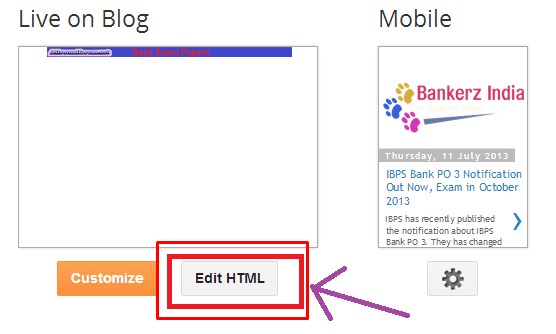
3. After that, Click on “Edit HTML” option. The below given figure shows the same.
4. After that, Click on “Jump to Widget” drop down list and choose “Attribution 1” option. The below given figure shows the same.

5. Have a look on “<b:widget id=’Attribution1′ locked=’true’ title=” type=’Attribution’>”. You will have to replace “true” with “false”. The screenshot of the same is shown below.
For more convenience (locked = 'true') replace it with (locked = 'false')

6. Now replace the “true” option with “false“. Once done, click on “Save Template“. The screenshot of the same is shown below.

7. Once done, Click on “Layout” option. You will find this
option on the left side as shown below.

8. You would be able to see the layout of your template. Now, find the “Attribution” widget and click on “Edit” link. Below given figure shows the same.

9. Another screen will appear before you. Simply click on “Remove” button. Below given figure shows the same.
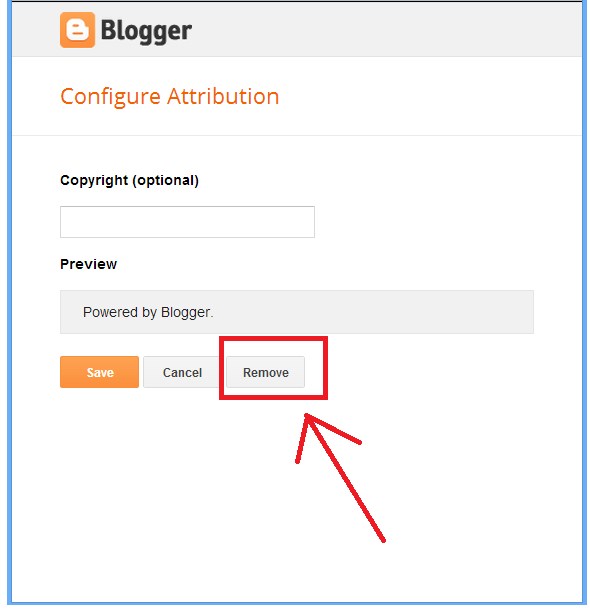
Congratulations! You have done it all. Now, Log out your account and log in again and enjoy.
2. Add Style In Your Template HTML
1. Go to template and press on HTML button and search for this
code </head> the way I mentioned before. Look at the screenshot below.

2. Just above the </head> add this code.
2. Just above the </head> add this code.
<style>
                        #attribution
{
                        display: none;
}
</style>
See the below screenshot for clear understandings.

Congratulations! You're done once again.
Congratulations! You're done once again.
Note:- you will see that the attribution widget
still in your Layout but the word "Powered By Blogger" has gone.

Congratulations! Once again you've done with removing "Powered By Blogger" attribution from your blogger blog.
I have searched all the possible ways to remover "Powered By Blogger" attribution and listed the most authentic and popular methods.
Just be honest, hit share and comment below.
3. Use CSS Code In Your Template Designer (Easy Way)
1. Jump to your Template again. But in this time you won't hit
the button HTML but "Customize"
2. A template designer will show up click on "ADVANCED" and choose "Add CSS".
3. Add the below code and click "Apply to Blog".
#attribution
{
                        display: none;
}
Congratulations! Once again you've done with removing "Powered By Blogger" attribution from your blogger blog.
I have searched all the possible ways to remover "Powered By Blogger" attribution and listed the most authentic and popular methods.
Just be honest, hit share and comment below.
Don’t Get Confused With Posts And Pages In WordPress - Post VS Pages In WordPress
I think whatever we share with our readers or followers, we
always should implement that technique first for ourselves and if that is
useful then you can share your experience with your readers.
When I was start learning WordPress for myself, at
that time I face too many problems in some basic aspects of WordPress, which is
quite similar for all beginners and the questions are like (How to add MENU,
what is the difference between Posts and Pages, How to Add Images in content
etc.). I think I should discuss each and every basic concept of WordPress for
beginners.

What Are Post?
If you are using WordPress as a blog, then you will end up
using posts for majority of your site’s content. Posts are content entries
listed in reverse chronological order on your blog’s home page. Due to their
reverse chronological order, your posts are meant to be timely. Older posts are
archived based on month and year. As the post gets older, the deeper the user
has to dig to find it. You have the option to organize your posts based on categories
and tags.
Because WordPress posts are published with time and date in
mind, they are syndicated through the RSS feeds. This allows your readers to be
notified of the most recent post update via RSS feeds. Bloggers can use the RSS
feeds to deliver email broadcasts through services like Aweber or MailChimp.
You can create a daily and weekly newsletter for your audience to
subscribe to. The very timely nature of posts make it extremely social. You can
use one of the many social sharing plugins to allow your users to share your
posts in social media networks like Twitter, Facebook, Google+, LinkedIn etc.
Posts encourage conversation. They have a built-in
commenting feature that allows users to comment on a particular topic. You can
go to your Settings » Discussion to turn off comments on older posts if you
like.
What Are Pages?
Pages are meant to be static “one-off” type content such as
your about page, privacy policy, legal disclaimers, etc. While the WordPress
database stores the published date of the page, pages are timeless entities.
For example, your about page is not suppose to expire. Sure you can go back and
make updates to it, but chances are you will not have about page 2012, about
page 2013 etc. Because there is no time and date tied to pages, they are not
included in your RSS feeds by default. Pages are not meant to be social in most
cases thus does not include social sharing buttons, or comments.
You don’t want users to comment on your contact page, or
your legal disclaimers page. Just like you probably don’t want others to tweet
your privacy policy page in most cases.
Unlike posts, pages are hierarchical by nature. For example,
you can have a sub pages within a page. A key example of this in action would
be our Blueprint page. This feature allows you to organize your pages
together, and even assign a custom template to them.
WordPress by default comes with a feature that allows you create
custom page templates using your theme. This allows developers to
customize the look of each page when necessary. In most themes, post and pages
look the same. But when you are using your page to create a landing page, or a
gallery page, then this custom page templates feature comes in very handy.
Pages also have this archaic feature called Order which lets
you customize the order of pages by assigning a number value to it. However
this feature is extended by plugins like Simple Page Ordering that
allows you to drag & drop the order of pages.


Posts Options
There are a few options that are specifically for posts only.Categories And Tags
Posts will use categories and tags, but pages don’t. There
are plugins that do allow you to use categories with pages, but likely you will
just need them for your posts.
Excerpt
The excerpt option lets you create a brief description
of your post. It can be very useful. How it displays will depend on your
theme.
Here is an example would. Often you will find on your blog
archive page that the full post isn’t listed. It might instead be a photo, the
title and a short blurb that encourages people to click through to read
the rest of the post. This is much better for your readers because they
scan blog posts on your archive page without scrolling. By default, most themes
will pull in the first few lines of the post. But if you add an excerpt, it
often replaces those first few lines. Readers like it because it gives them a
short synopsis of your post’s topic.
Send Trackbacks
Trackbacks are a way to let someone on another WordPress
site know you are talking about them. Let’s say that I am referring to another
blogger’s post in my post.I would put in the URL of that specific post,
and they would then be notified that I was talking about them. Cool, huh? But
unfortunately trackbacks have become a source for spammers. So read up on the
pros and cons a bit more to get a better idea of whether you should use
them.

Pages Options
The only technical difference between pages and posts is
found in thing Page Attributes.

Parent
This is where you can set pages as a child page of another
page, which basically means a sub-page. You will only see the effect of this
option when viewing all pages in your dashboard. It will not affect the
navigation as you need to set that up in your Appearance > Menus.
Template
Every theme has a set of templates. Here you see two of the
basic templates: Archive and Blog. You might choose the blog template if you
want an inside page to be your blog posts, rather than your homepage.
You can learn more about that in this post or this podcast.
You may see more templates than this screenshot shows you.
Often themes have other templates, such as portfolio or landing page. A landing
page template would likely remove the header and the navigation to create a
simple landing page. I would recommend testing and viewing the templates
available with your theme. Of course, the default template is what you will be
using most.
Order
This is how you can order your pages. Again, this has no
effect on your navigation menus. Like the Parent option, you will only see this
on your All Pages dashboard view. By default, on that page they are listed in
alphabetical order. You can, of course, list them in any order you would like.
Posts vs. Pages (Key Differences)
The differences we list below definitely have exceptions.
You can use plugins or code snippets to extend the functionality of both
content types. Below is the list of key differences by default.
1. Posts are timely vs. Pages are timeless.
2. Posts are social vs. Pages are NOT.
3. Posts can be categorized vs. Pages are hierarchical.
4. Posts are included in RSS feed vs. Pages are not.
5. Pages have custom template feature vs. Posts do not.
Search engines like content to be organized. Timeless
content is considered to be more important however there is a lot of priority
given to latest timely content. In short, there may be a difference, but as a
beginner you do not need to worry about it. Focus on making your site organized
for the user.
Frequently Asked Questions
How Many Posts and/or Pages can I have?
You can have as many posts and/or pages that you want. There
is no limit on the number of posts or pages that can be created.
Are there any SEO advantages to one or the other?
Search engines like content to be organized. Timeless
content is considered to be more important however there is a lot of priority
given to latest timely content. In short, there may be a difference, but as a
beginner you do not need to worry about it. Focus on making your site organized
for the user.Final Words
I have tried my best to let you understand the clear and basic difference between Posts & Pages in WordPress. Hope this article fulfilled all the basic knowledge and if you still have any confusion please comment below.